One rule, applied where it belongs.
A dedicated tool for the parameters that change a BOM’s cost from the outside: inflation, margins, specific percentages. Each variable is defined once, then applied to the whole BOM, to a category of part numbers, or to a single element.
- Role
- Senior UX/UI Designer
- Company
- Bit2win · CPQ for manufacturing
- Works with
- BOM costing
- Tools
- Figma
The problem
A BOM’s cost is not a fixed number. Inflation, margins and other percentages change it, and they don’t apply the same way everywhere: some affect every part, some only one type of part, some a single part number.
The goal was simple to say and hard to design: apply variables to specific data, or to groups of data, without touching every row by hand.
Parallel to the BOM, managed on its own
Variables act on the BOM, but they are not part of it. They are global parameters that many BOMs share, so they live in a dedicated tool: defined once, reused everywhere, changed in one place.
Global parameters
Inflation, margins and specific percentages, kept together instead of scattered across BOMs.
Defined once
A variable has a name, a value and a rule. It is created once and reused.
Applied where needed
On the whole BOM, on a category of part numbers, or on a single element.
Anatomy of a variable
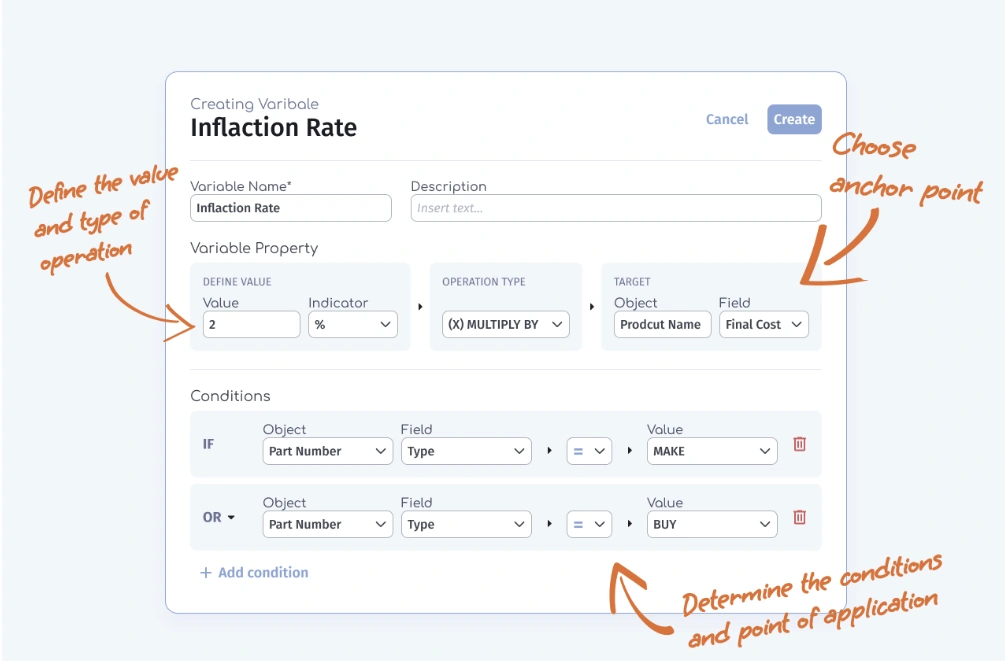
Every variable answers four questions: how much, what operation, on which value, and where. Breaking it into these parts makes even a complex rule readable as a sentence: multiply the final cost by 2% if the part number is MAKE or BUY.
Three levels of application
The same variable can act at three levels. The interface makes the level explicit, so people always know how far a change will reach before they create it.
The interface
Define the value
A value, an indicator (such as %) and the type of operation, side by side.
Choose the anchor point
The target object and field the variable acts on, such as the final cost.
Set the conditions
IF and OR rows narrow the variable down to the right part numbers.
An example: cost over the years
One use of the tool is projecting a cost over time. Starting from today’s cost, an inflation variable gives the expected cost year by year. It is the same logic that feeds the multi-year projections in the BOM.